
To test the RT-N13U I will be using a Dell D630 laptop and a desktop computer. These will be later used to transfer files so that we can observe the speeds at which data is transferred.
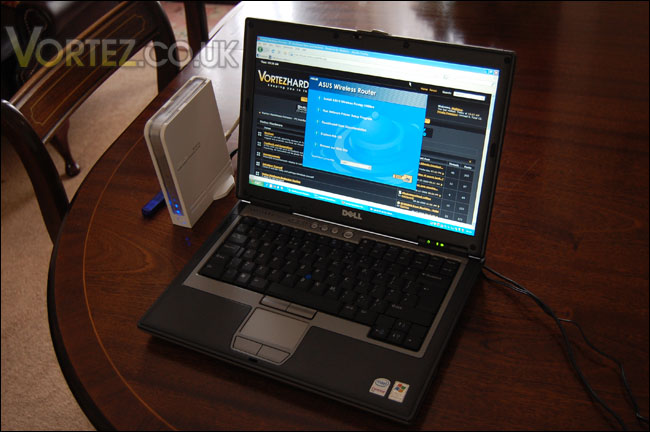
Setting up the router I started by inserting the CD into the optical drive, the wizard automatically loads up and presents you with a screen asking you what you would like to install. I chose to “Install ASUS Wireless Router Utilities”.
To access the admin panel so that I can configure any settings was easy. I just opened up a web browser and typed in the IP address on the underside of the router: 192.168.1.1 this then took me to a secure login, I typed in admin and admin for the username and password. After hitting ok I was presented with the following screen:
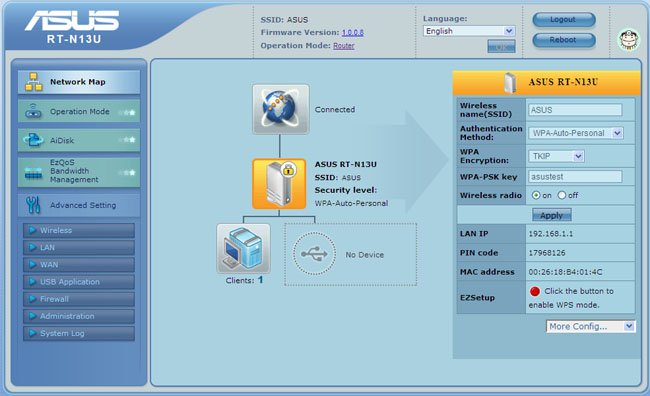
This gave me a detailed summary of how my current network looks. To the right hand side the settings that I setup with the wizard earlier are there. Including the SSID and Passphrase. I must say that the interface looks great and is easy navigated. It’s not hard to find your way around and even if you do have trouble setting up your network the DR. Surf in the top right hand section of the admin panel will give you hints such as “The Ethernet cable is not plugged in” so that you can quickly sort out any problems.
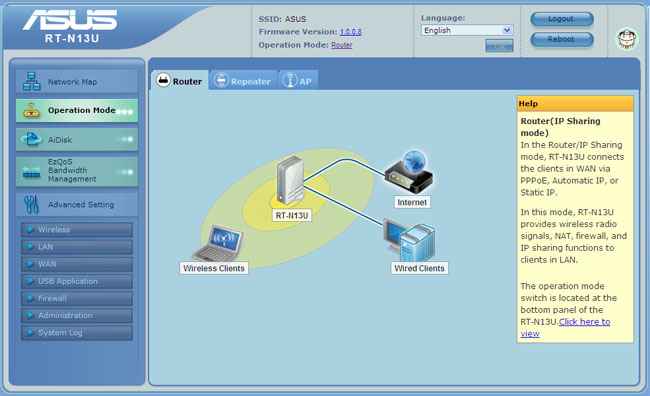
Under the Operations Mode tab you are presented with the 3 modes, Router, Repeater or AP. This is to be used in conjunction with the buttons on the underside of the router that I mentioned earlier. For each that you click on you can see a diagram, giving you a clear picture of how a network would look like. Very helpful.
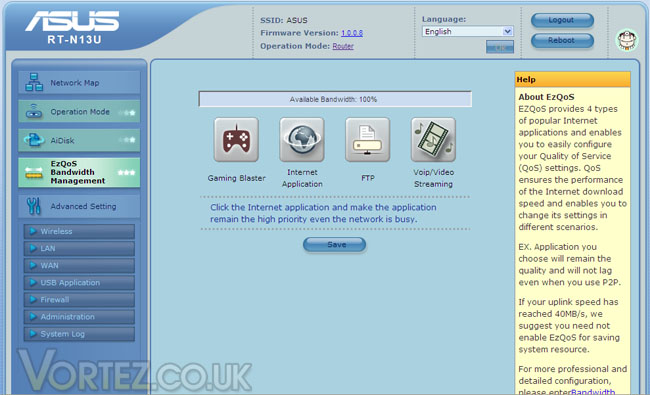
We will skip the AiDISK and look at this in the next section. So the next feature to engage our attention is the EzQOS Bandwidth Management. In this section we can manage how much bandwidth is used for certain operations under particular protocols. For example. We can assign higher priority to gaming and internet applications and lesser priority to FTP. This is a clever feature and surely very useful if you share the router with others and you wish to control bandwidth usage easier.
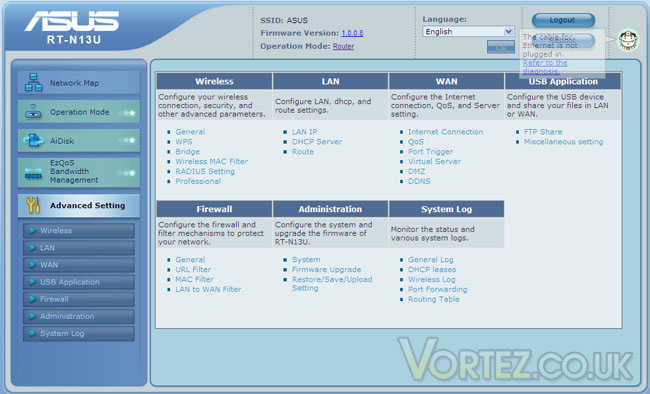
The advanced tab in the admin panel gives you many avenues and controls. I won’t go any further with screenshots but as you can see from the advanced tab screenshot there are a huge amount of options there that advanced users can take advantage of.
Setting up the router I started by inserting the CD into the optical drive, the wizard automatically loads up and presents you with a screen asking you what you would like to install. I chose to “Install ASUS Wireless Router Utilities”.
To access the admin panel so that I can configure any settings was easy. I just opened up a web browser and typed in the IP address on the underside of the router: 192.168.1.1 this then took me to a secure login, I typed in admin and admin for the username and password. After hitting ok I was presented with the following screen:
This gave me a detailed summary of how my current network looks. To the right hand side the settings that I setup with the wizard earlier are there. Including the SSID and Passphrase. I must say that the interface looks great and is easy navigated. It’s not hard to find your way around and even if you do have trouble setting up your network the DR. Surf in the top right hand section of the admin panel will give you hints such as “The Ethernet cable is not plugged in” so that you can quickly sort out any problems.
Under the Operations Mode tab you are presented with the 3 modes, Router, Repeater or AP. This is to be used in conjunction with the buttons on the underside of the router that I mentioned earlier. For each that you click on you can see a diagram, giving you a clear picture of how a network would look like. Very helpful.
We will skip the AiDISK and look at this in the next section. So the next feature to engage our attention is the EzQOS Bandwidth Management. In this section we can manage how much bandwidth is used for certain operations under particular protocols. For example. We can assign higher priority to gaming and internet applications and lesser priority to FTP. This is a clever feature and surely very useful if you share the router with others and you wish to control bandwidth usage easier.
The advanced tab in the admin panel gives you many avenues and controls. I won’t go any further with screenshots but as you can see from the advanced tab screenshot there are a huge amount of options there that advanced users can take advantage of.


