
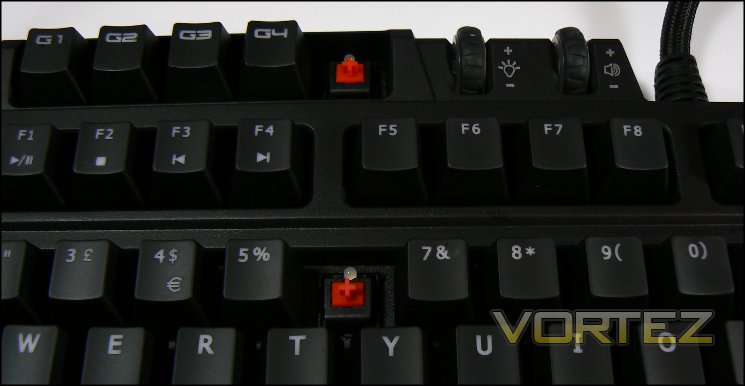
Lifting one of the Aivia Osmium's keycaps reveals the characteristic red cross of a Cherry Red switch, a switch which is present for each key including G1-5 on the topmost row. Cherry Red keys require 45g of force to actuate, much less than Blacks seen on some other mechanical keyboards, and has a linear actuation style. This style is a favourite of gamers as the force with which they perform a keystroke typically bottoms-out the key, rendering tactile feedback moot.
More detailed information on the Cherry MX range of switches can be found here.
Above each switch is a blue variable-brightness LED designed to shine through the keycap in low-light conditions. The blue matches GIGABYTE's brand colour, but has the side-effect of introducing more glare than red LEDs of similar intensity and has the potential to be problematic for those who utilise corrective lenses. The backplate of the GIGABYTE Osmium is black, with a rigidity which indicates a steel composition. There is no flex to the keyboard whatsoever, indicating an extremely durable construction especially compared to many membrane keyboards on the market.
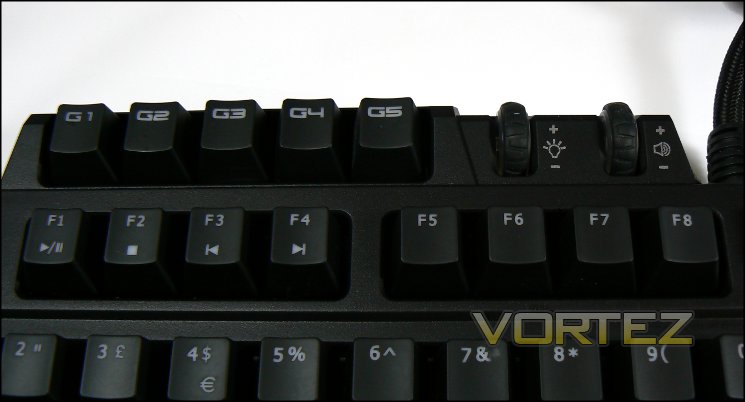
Macro keys - on the Osmium stylised as G-Keys - are included on the topmost key row next to two wheels labelled for audio and brightness adjustment. These keys are programmable in software for specific functions, with settings stored in memory on the keyboard itself and hence transferable between PCs. As with standard keys their keycaps can be replaced by the customised ones supplied, or others from a 3rd party source.
Function-Lock (fn)
The Osmium features a function key modifier labelled fn on the right-hand-side (next to alt gr) Whilst not a toggle, pressing this key simultaneously with F1-4 alters their behaviour to that of standard media keys Play/Pause, Stop, Step Back and Step Forward respectively. This functionality neatly cuts down the number of functions you would consider binding to the G-Keys, but nonetheless are unlikely to be hugely valuable unless you're playing a lot of media on your PC.
Media player functionality is further augmented by the volume control roller on the top bar to the right of the G-Keys. Rotating up and down will increase and decrease the overall system volume, whilst pressing the wheel will mute the system volume. Of all the media functionality, this is by far the most useful, and a sensible addition to the feature set.
Additional Features
.jpg)
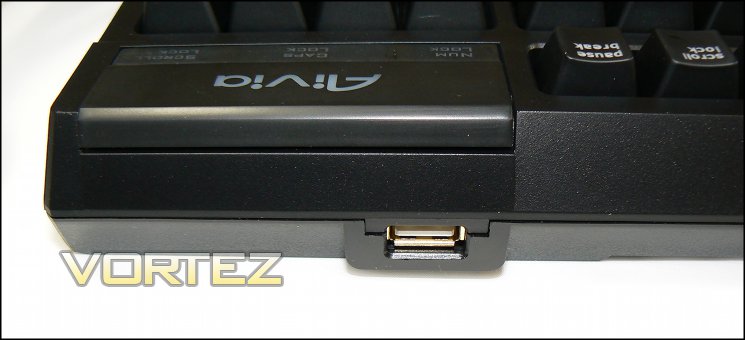
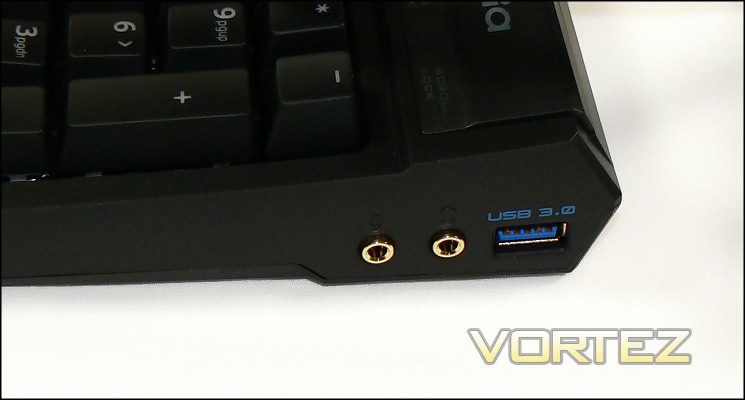
USB 2.0 and 3.0 ports are present on the rear and right-hand-side of the Osmium keyboard. The USB 3.0 is a passthrough which needs to be connected at the rear of your system to be enabled, whereas USB 2.0 comes through the same signalling as the keyboard's port. This may have some impact on compatibility given the faster polling rates utilised by this and other gaming keyboards, but by far the most important factor is to be aware of port power limitation. The USB 2.0 port will be supplying plenty of juice to the keyboard and LED options, and plugging in a particularly power-hungry device such as a smartphone in need of charging could easily exceed the supplied power. Generally speaking, best to stick to thumb drives on USB 2.0, whilst the separate supply of USB 3.0 should make it a much more hardy proposition.
.jpg)
The Osmium also includes headset audio passthrough from the rear of your system to the right of the keyboard. The value of each of these features will greatly depend on your own set-up - generally the location of your PC case and the configuration of its front panel. We can't fault the execution or thought behind it, and can certainly envision instances where it substantially reduces desk clutter.


