
In common with most mice on the market today GIGABYTE do not bundle the configuration software with the Uranium. Instead, the Aivia GHOST Engine is downloaded from the official website and acts as a unified configuration suite across the whole of the Aivia range including the older Osmium and Krypton. The latest version is v1.0.6, updated specifically for the release of the Uranium.
The GHOST Engine utilises a modular design and a layout which is close to identical for each device in the range. Those who have had experience with the utility in the past will appreciate the short time it will take to get up to speed, but it should also be recognised that a one-sized fits all solution can result in loss of functionality because the most obvious scheme for implementing a feature doesn't always fit easily within the design ethos.
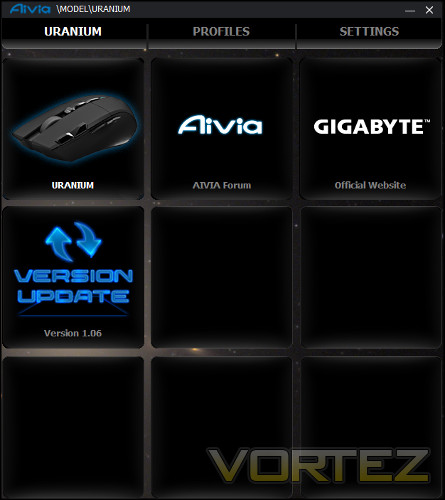
As with many solutions which utilise on-board memory the Uranium doesn’t require the GHOST Engine to run, only the creation and editing of macros and some other non-critical functionality. At the time of writing there were no firmware update available for the mouse, nor its GHOST Macro Station.
GHOST Application Launch Screen
Get used to this layout, because you’ll be seeing it a lot. The GHOST Engine utility’s principle layout is a 3 x 3 grid with additional options listed at the top. On this page you’re prompted to select a device to begin configuration, with additional compatible peripherals also present if connected. Also included in the grid of options is an software version update check and downloader (which is always welcome), a link to the Aivia forum for configuration and trouble-shooting tips, and GIGABYTE’s own official website.
The benefits of this layout are its expandability. Compatible peripherals or new links can be added simply by adding a tile where necessary, rather than designing a new graphical element and integrating that into a finalised UI. The downside is that it doesn’t look nearly as polished as standalone solutions.
Once a device is selected the next step in configuration is made by clicking Profiles.
Profiles
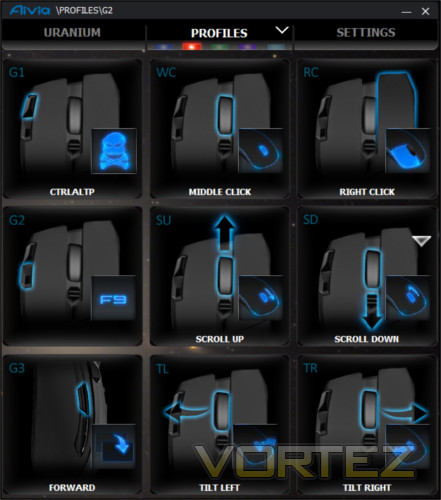
Unlike some mice were user-defined settings are complex and largely independent of each other the intent of profiles on the Uranium is simply to store button assignments. At the top of the window, just under where Profile is written, there are five coloured blocks which indicate the five different profiles. Also numbered 1-5 internally, the colour indicated will be shown on the GHOST Macro Station when that profile is active. Profiles cannot be renamed, only assigned a different colour; profile backups are also not part of the default GHOST Engine functionality.
Once again we have a 3 x 3 grid. Here each tile represents a particular button or mouse event location which can be assigned to simulate a keypress or trigger a macro. The small icon on each one represents the current button assignment pictorially, either though an image that shows a mouse function, that the button is disabled, a keystroke, or a macro image. Note that if a macro is bound the icon that represents it can be customised.
Clicking on a tile throws up a new screen with three main options: Basic, Key Mapping and Macros. Selecting Basic brings up a series of default windows functions, media keys and common shortcuts such as Copy and Paste; in total there are 50 commands to choose from. Alternatively Key Mapping allows you to select a single alphanumeric keystroke, or one of F1-F12.
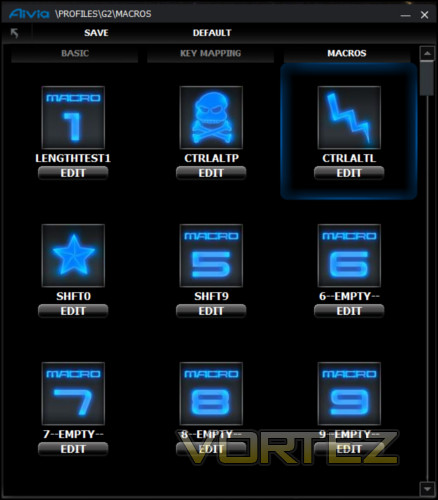
By comparison to the market leaders this functionality is really the minimum you would expect. Other mice include modified keystrokes using standard keyboard modifiers such as Alt and Control where required. If you want to perform any advanced sequence of keystrokes on the Uranium you’re going to have to go through the macro editor, which is a little less convenient. Furthermore there’s no option for reassigning the DPI rocker switch to anything but DPI change, and no short-term DPI modifier (as seen in mouse sniper buttons) for any other button. As unique customisation options go, the Uranium is banking on the suitability of the G1, G2 and wheel tilt macro assignments.
Macro Creation
The Macro window shows a total of 70 slots, each for a unique macro which you can name and assign an icon to. The macros displayed are all those stored with the GHOST Macro Station, and if they’re represented here they will also be displayed in the Station’s own macro list. Clicking edit for any tile will bring up the Macro Creation window.
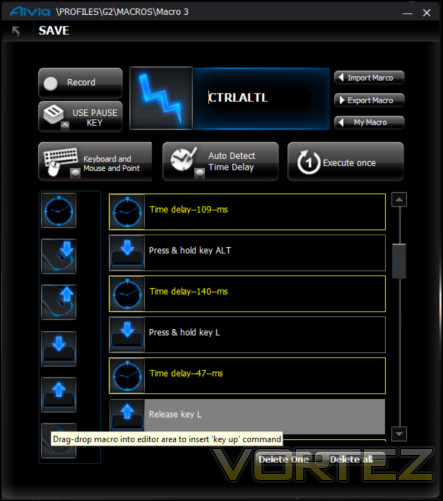
Creating a macro is easy and swift using a standard recording system, whilst delays between recorded keystrokes can be integrated or set aside as required. The maximum number of keystrokes is 52, which should prove to be ample for all your needs. Clicking on the icon in the macro editor will throw up a grid of alternate icons to choose from, as well as give you the chance to upload your own image. Note that this image is only represented in software and won’t be reflected in the Base Station’s display.
Intriguingly, GIGABYTE have once again included the ability to set the X/Y coordinates of the mouse pointer during a macro on a mouse click event. GIGABYTE are one of very few manufacturers which include this functionality in their macro recording utility, and well worth considering if it would be valuable to you.
Macro backup and restore is also included here through import and export functionality, but solely on a per-macro basis. When exported they’re saved with the .ini extension, which is a little unfortunate as it’s commonly used in system OS configuration. GIGABYTE don’t provide a default save location, so you will need to set your own and navigate to it as required. If you delete the macro from the on-board memory you can then import it and save it to to on-board memory once again, or just grab a library of GHOST macros suitable for your games from an enthusiast forum.
Settings
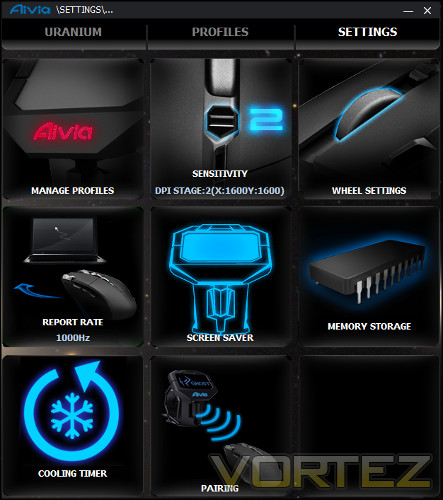
The final menu option is Settings, which contains the configuration options for the mouse which don’t come under the banner of button assignment. Some settings are rather niche, but others are more useful in the main.
The most important is Sensitivity, where DPI levels are stored. This allows you to define the DPI for each of the mouse’s four DPI Levels in both X and Y rates. Each is independent of the other, but unfortunately there is no facility to either selectively disable a DPI level or set up a temporary modifier. You’re instead reliant on your dexterity not only in pushing the DPI rocker at the right time, but also in the right direction. This may tax a number of FPS players, but as we’ve discussed the mouse isn’t ideal for that genre of games.
Manage Profiles allows you to selectively enable and disable mouse profiles (which is great) and also change their default colour (to one of seven options) and colour effect. What you’re not able to do is associate a profile with a specific application, name the profile or back the entirety of it up for later use. The default functionality is fine so far as it goes, but is outstripped by competing solutions.
Scroll and tilt configuration is made through the Scroll Wheel option, describing the number of lines/character to transit per notch of the wheel or tilt movement. In the former case, which mimics the default windows behaviour.
Report Rate allows you to set up the polling rate of the mouse in Hz, with 1000 Hz being equivalent to a response time of 1ms. Variation is in a series of presets representing a response time of 1, 2, 3, 4, 5, 6, 7 and 8ms respectively.
The Pairing option manually pairs your mouse with it’s base station counterpart. Useful if you’re in an environment with more than one Uranium mouse, or if the wireless landscape is in high demand, it should also seek to utilise the best wireless channel for data transmission.
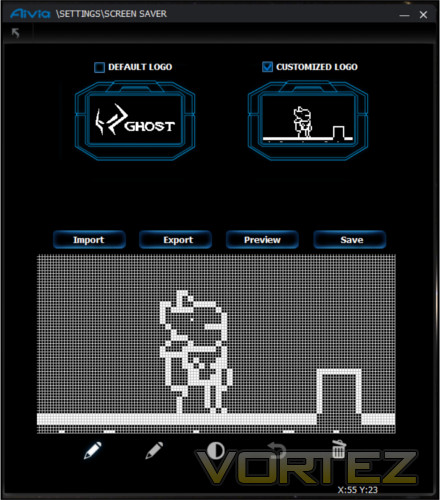
The final two options are specific to the Uranium and seek to leverage the OLED display of the base station. The first is the configuration of a screen saver, allowing the importing of a 128x64px bitmap for uploading as an image to display on the screen during idle periods. The other is a Cooling Timer (AKA Cooldown Timer) which will alert you a set amount of time after pushing a particular button on the mouse.
Both are interesting options, but neither go far enough. From one perspective it would be pleasant if the ‘screen saver’ was actually the default image, and the current default display was only shown when the mouse was in configuration mode. As for the latter, the value will vary with the user and title, and is something you’d only really want operating with specific game profiles.
Overall the software is distinctly average. A lot of the configuration options are shared between profiles, when really they could do with being set on a per-profile basis. Rather than modular design opening up the possibilities of the utility it appears to be hampered by it, despite a few novel ideas. It’s certainly functional, but cannot really hold a candle to the advanced functionality on some MMO mice on the market today.
It’s not clear if the design of the Uranium is holding it back, or the software itself. However seeing as the Krypton had many of the same limitations, we’re leaning towards it being the software.


