
As already stated Mionix don't supply a disk with the Naos 5000 which some may think a little odd, but let's be honest here – who actually uses drivers which come with a mouse anyway? They are almost always long out of date and so needing a update to be downloaded. If you are buying a high performance gaming mouse such as this you would want to ensure you are using the latest and best drivers and firmware so downloading is the only way to go.
When you run the Naos 5000 software setup it will first check the Naos 5000's firmware and update it if required – a process which is totally automated and took only a few seconds – and then load the driver and configuration software.
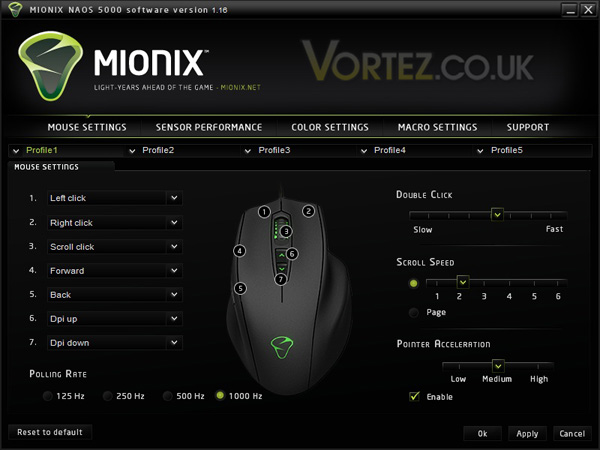
Above we see the main screen showing the first tab of 5 – Mouse Settings.
Here we can control what each of the 7 buttons does where you can choose from a preset drop-down list. The polling rate can also be adjusted, as can several other basic settings. Each setting can be adjusted for each of the 5 onboard profiles stored in the Naos' 128kb onboard memory, which can be a very useful feature as once setup you can pretty much forget the software and just get on with the gaming!
On the second tab we see all the settings and adjustments for the laser sensor.
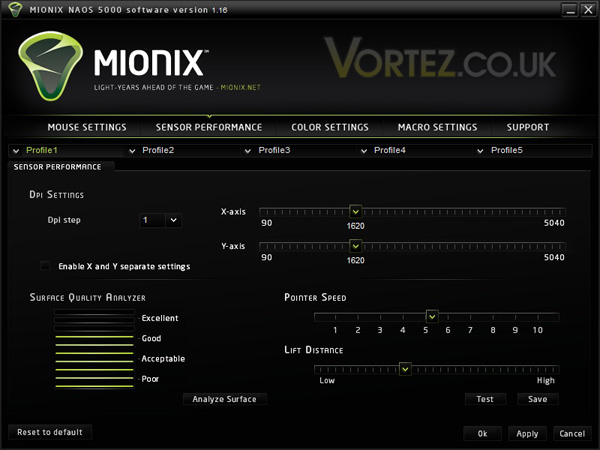
Dpi can be set for X and Y axis together or at the click of a button you can set them independently should you so wish – a feature which could be useful for some widescreen gaming where the ability to track across the screen really fast could be useful. You will also find the S.Q.A.T (Surface Quality Analyser Tool) here along with Pointer Speed and Lift Distance settings.
On the third tab we get to play with all the colour settings.
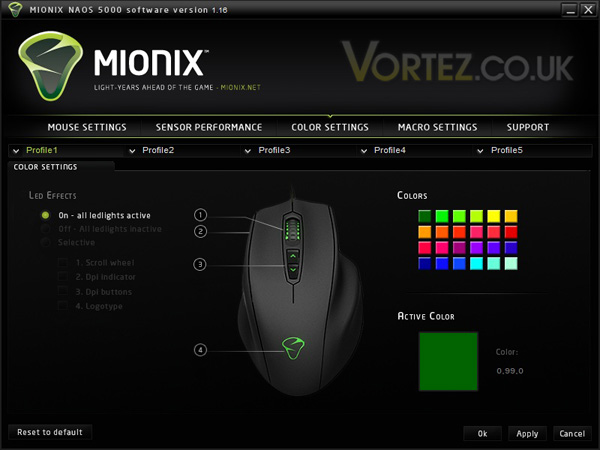
Here you can adjust the colour of all the led zones together or selectively, and the choice of colours is quite extensive allowing you to customize your Naos to truly be a one of a kind device! Again, the 5 onboard profiles can store different colour schemes so you can easily switch between them as the occasion demands!
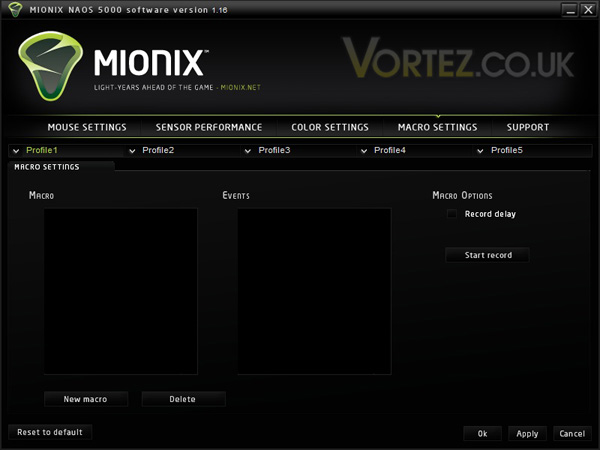
On the fourth tab we find the Macro Setting screen where we can record any combination of keystrokes and mouse clicks.
On the final tab we have Support and Software Update options.
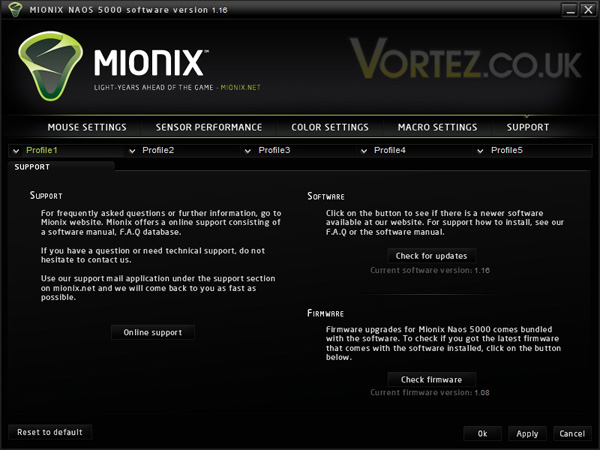
Overall the software presents a very comprehensive array of configurable options, it is clearly laid out and intuitive to use so that it is easy to get the Naos 5000 set up and running exactly as the user requires in only a few minutes.
When you run the Naos 5000 software setup it will first check the Naos 5000's firmware and update it if required – a process which is totally automated and took only a few seconds – and then load the driver and configuration software.
Above we see the main screen showing the first tab of 5 – Mouse Settings.
Here we can control what each of the 7 buttons does where you can choose from a preset drop-down list. The polling rate can also be adjusted, as can several other basic settings. Each setting can be adjusted for each of the 5 onboard profiles stored in the Naos' 128kb onboard memory, which can be a very useful feature as once setup you can pretty much forget the software and just get on with the gaming!
On the second tab we see all the settings and adjustments for the laser sensor.
Dpi can be set for X and Y axis together or at the click of a button you can set them independently should you so wish – a feature which could be useful for some widescreen gaming where the ability to track across the screen really fast could be useful. You will also find the S.Q.A.T (Surface Quality Analyser Tool) here along with Pointer Speed and Lift Distance settings.
On the third tab we get to play with all the colour settings.
Here you can adjust the colour of all the led zones together or selectively, and the choice of colours is quite extensive allowing you to customize your Naos to truly be a one of a kind device! Again, the 5 onboard profiles can store different colour schemes so you can easily switch between them as the occasion demands!
On the fourth tab we find the Macro Setting screen where we can record any combination of keystrokes and mouse clicks.
On the final tab we have Support and Software Update options.
Overall the software presents a very comprehensive array of configurable options, it is clearly laid out and intuitive to use so that it is easy to get the Naos 5000 set up and running exactly as the user requires in only a few minutes.


