
The driver and software for the Razer Abyssus Mirror are not included with the retail mouse. Installation is optional and the driver/software can be downloaded from Razer’s website. The current version of the driver is 2.00 (released on 2010-05-14) and it only supports the English language. The driver comes in other languages, but the driver version is currently 1.00 (released on 2010-11-19).
Razer Support: Driver and Software Download
Asides from the downloadable driver, the user manual (master guide) can also be downloaded from Razer’s website. It is currently offered in English or Japanese.
Razer Support: User Manual
The size of installation file of the driver is 6.37 MB. Installation is straight-forward and it will create four shortcuts in the star menu.
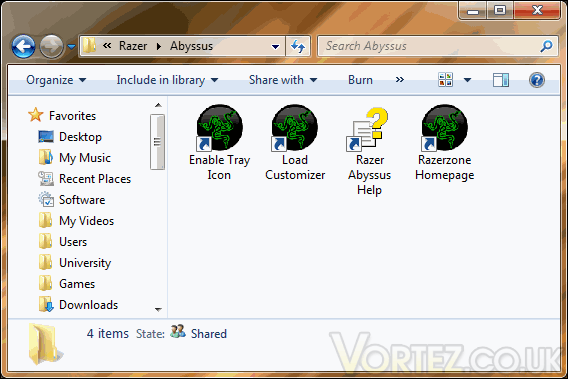
Start menu shortcuts: Enable Tray Icon, Load Customizer, Razer Abyssus Help and Razer Homepage
The setup will also launch the Tray Icon. This tray icon has various options and can launch the Customizer, the main part of the Razer software.
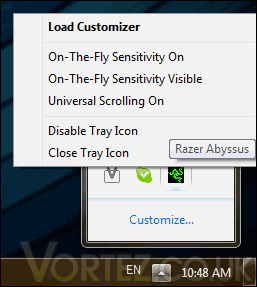
The contest menu of the Tray Icon
The Customizer has three main tabs: sensitivity, scroll wheel and buttons. The Update button leads to Razer Support’s website. In the Sensitivity tab, we can modify the sensitivity of the mouse (in the same manner as Motion under Mouse Properties of the Control Panel of Windows). The test area is quite amusing; double clicking this area will shatter the area as if it was glass with a bullet running through it.
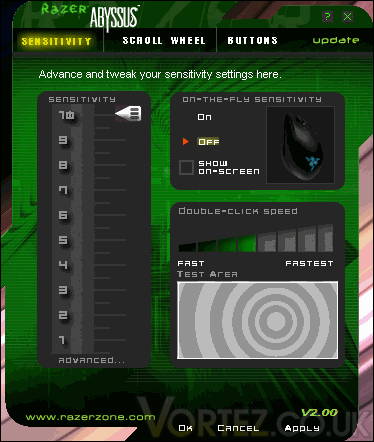
The Sensitivity tab of the Customizer
On-the-fly sensitivity can be enabled and shown on-screen. A button will need to be assigned “On-The-Fly Sensitivity” under the Buttons tab. When said button is depressed, the scroll wheel can be scrolled upwards or downwards to modify the sensitivity accordingly. The on-screen scale will be shown in most games. It did not show under Counter-Strike 1.6, however.
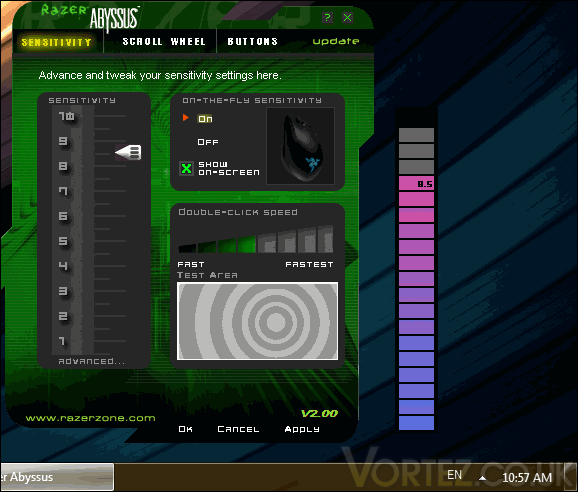
The on-screen display of the sensitivity
The sensitivity can be further customized according to the x-axis and the y-axis. There is also a master control for the mouse acceleration and windows control.
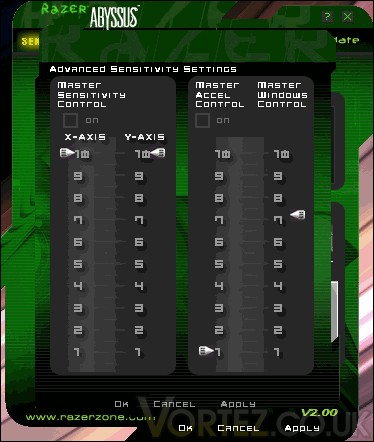
Advanced sensitivity settings
In the Scroll Sheel tab, the scroll scroll wheel speed can be modified. The universal scrolling can be disabled or enabled.
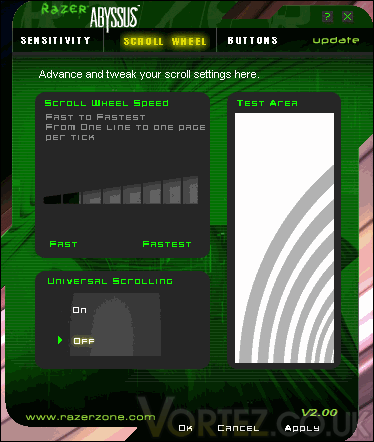
The Scroll Wheel tab of the Customizer
In the Buttons tab, the orientation of the mouse can be made to accommodate the right or left hand (the button assignment of the right and left buttons will be exchanged). The right, left, scroll buttons can each be independently modified to other functions or they can be assigned specific macros.
These settings will be kept as long as the software is installed. In other words, modifications made through the software are kept on the local computer only because the mouse does not have any on-board memory. It would have been interesting if the software could export or import settings.
Even though there are only a handful of buttons to configure, it is unfortunate that there is no profile system in the software to make switching between previously configured button assignment or sensitivity settings quickly.
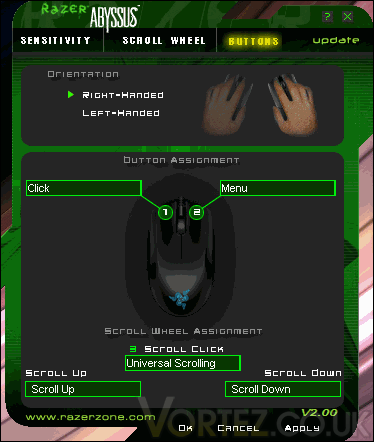
The Buttons tab of the Customizer
Each button can be assigned new functions
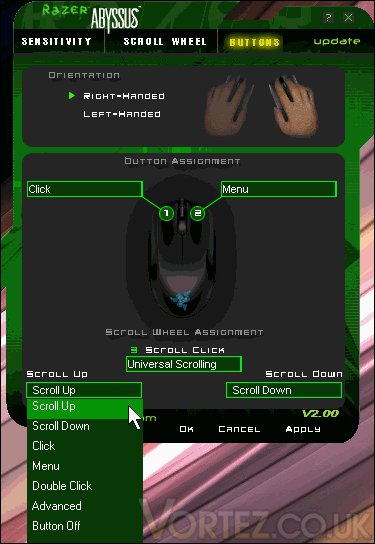
The scroll wheel movements can also be assigned new functions
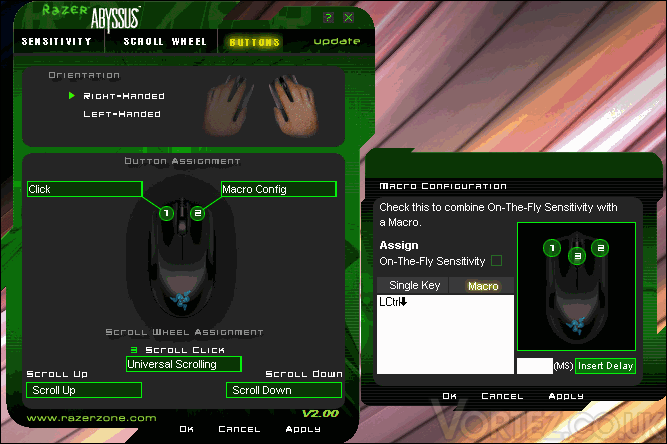
Buttons may be assigned specific macros with or without delay (1 to 99999 milliseconds)
The Razer Abyssus Mirror driver requires two processes to run: razerhid.exe and razerofa.exe. Both of these processes are light on the system and consume only 6 MB of RAM.
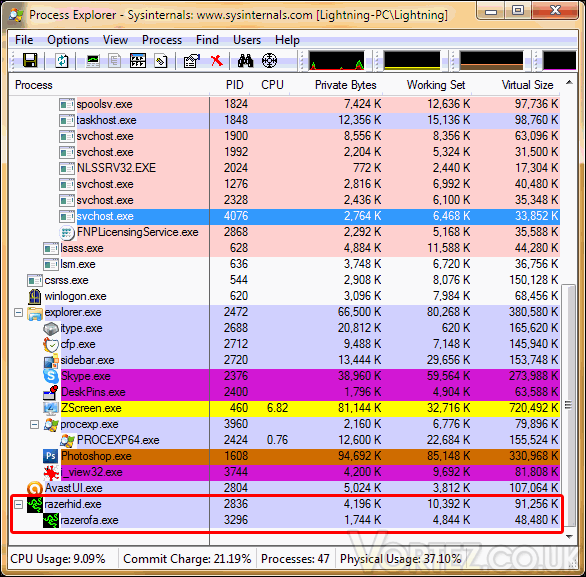
The Razer Abyssus Mirror consumes about 6 MB of RAM
Razer Support: Driver and Software Download
Asides from the downloadable driver, the user manual (master guide) can also be downloaded from Razer’s website. It is currently offered in English or Japanese.
Razer Support: User Manual
The size of installation file of the driver is 6.37 MB. Installation is straight-forward and it will create four shortcuts in the star menu.
Start menu shortcuts: Enable Tray Icon, Load Customizer, Razer Abyssus Help and Razer Homepage
The setup will also launch the Tray Icon. This tray icon has various options and can launch the Customizer, the main part of the Razer software.
The contest menu of the Tray Icon
The Customizer has three main tabs: sensitivity, scroll wheel and buttons. The Update button leads to Razer Support’s website. In the Sensitivity tab, we can modify the sensitivity of the mouse (in the same manner as Motion under Mouse Properties of the Control Panel of Windows). The test area is quite amusing; double clicking this area will shatter the area as if it was glass with a bullet running through it.
The Sensitivity tab of the Customizer
On-the-fly sensitivity can be enabled and shown on-screen. A button will need to be assigned “On-The-Fly Sensitivity” under the Buttons tab. When said button is depressed, the scroll wheel can be scrolled upwards or downwards to modify the sensitivity accordingly. The on-screen scale will be shown in most games. It did not show under Counter-Strike 1.6, however.
The on-screen display of the sensitivity
The sensitivity can be further customized according to the x-axis and the y-axis. There is also a master control for the mouse acceleration and windows control.
Advanced sensitivity settings
In the Scroll Sheel tab, the scroll scroll wheel speed can be modified. The universal scrolling can be disabled or enabled.
The Scroll Wheel tab of the Customizer
In the Buttons tab, the orientation of the mouse can be made to accommodate the right or left hand (the button assignment of the right and left buttons will be exchanged). The right, left, scroll buttons can each be independently modified to other functions or they can be assigned specific macros.
These settings will be kept as long as the software is installed. In other words, modifications made through the software are kept on the local computer only because the mouse does not have any on-board memory. It would have been interesting if the software could export or import settings.
Even though there are only a handful of buttons to configure, it is unfortunate that there is no profile system in the software to make switching between previously configured button assignment or sensitivity settings quickly.
The Buttons tab of the Customizer
Each button can be assigned new functions
The scroll wheel movements can also be assigned new functions
Buttons may be assigned specific macros with or without delay (1 to 99999 milliseconds)
The Razer Abyssus Mirror driver requires two processes to run: razerhid.exe and razerofa.exe. Both of these processes are light on the system and consume only 6 MB of RAM.
The Razer Abyssus Mirror consumes about 6 MB of RAM


