
Razer Synapse, the software designed to work seamlessly with your Blackwidow Chroma V2, is a fantastic piece of development, capable of being as intricate or simple as you like. If you can think of it, chances are, Razer have too.
Once you’ve set up your account, which is required to allow you to sign in on any PC and download your settings, you’re met with the Customize screen. This screen allows keys to be assigned different purposes and for profiles to be constructed, with the ability of assigning profiles to any program, therefore allowing certain setups to launch automatically, as soon as a game or piece of software is booted.
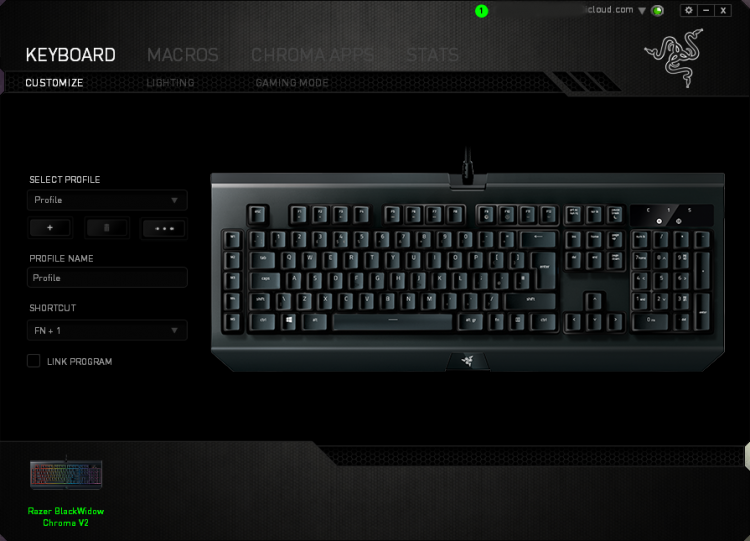
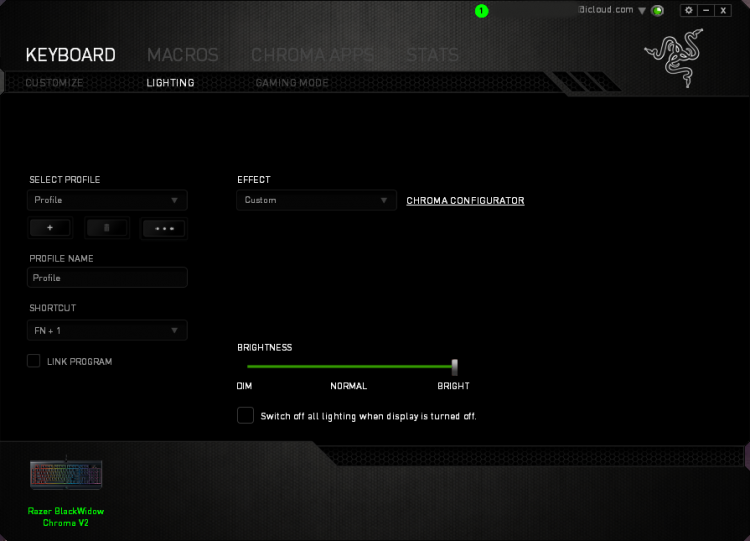
Next up, lighting, this is where the fun begins. The RGB lighting on this keyboard is worthy of an award on its own, so the software needs to be useful to fully utilise its abilities. Many different effects can be chosen, including starlight which lights up random keys, one at a time, in a choice of your colours. Fire is pretty fun, using orange, red and yellow to create the effect of a fire, roaring up from the bottom of the keyboard.
It’s also possible to download profiles from Razer’s website, created by Razer themselves or by the community.
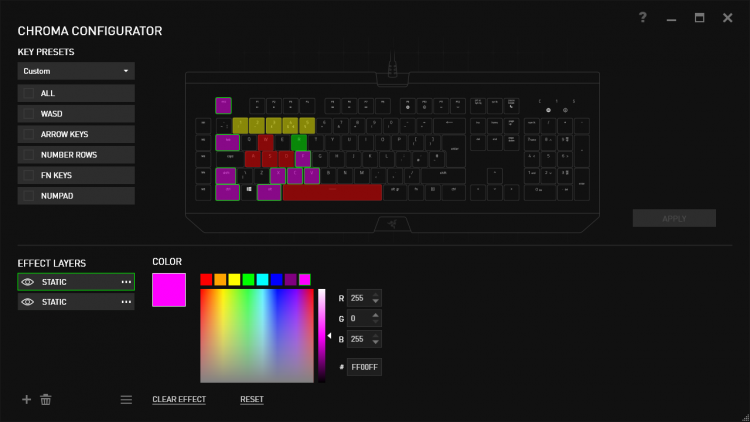
Gaming mode can be enabled within the software, which disables certain keys of your choice, to prevent them being accidentally clicked in the heat of battle; this setting can also be enabled using Fn + F10, marked on the key accordingly.

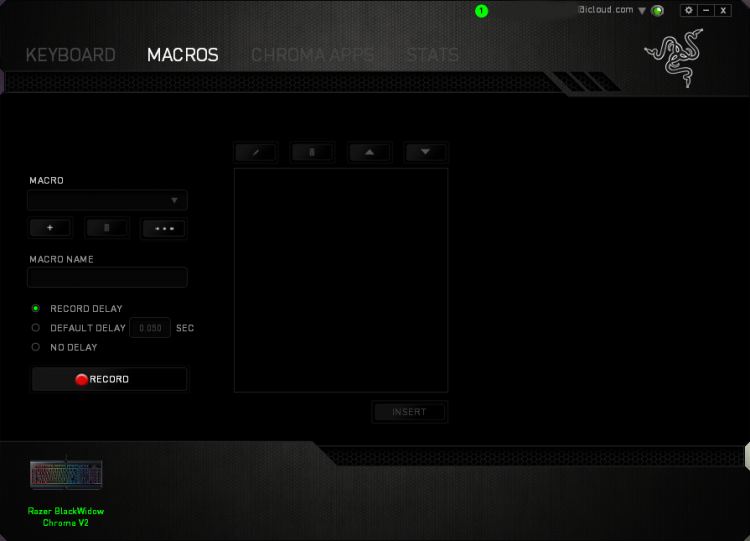
Macros can be assigned to any key on the keyboard, however Razer have placed 5 dedicated macro keys on the left hand edge of the keyboard, numbered M1 to M5. Setting up macros is incredibly easy, with the software able to record everything you do and repeat it perfectly, at the click of a button. We found this feature handy for starting our in-game recording software but the possibilities are near endless.
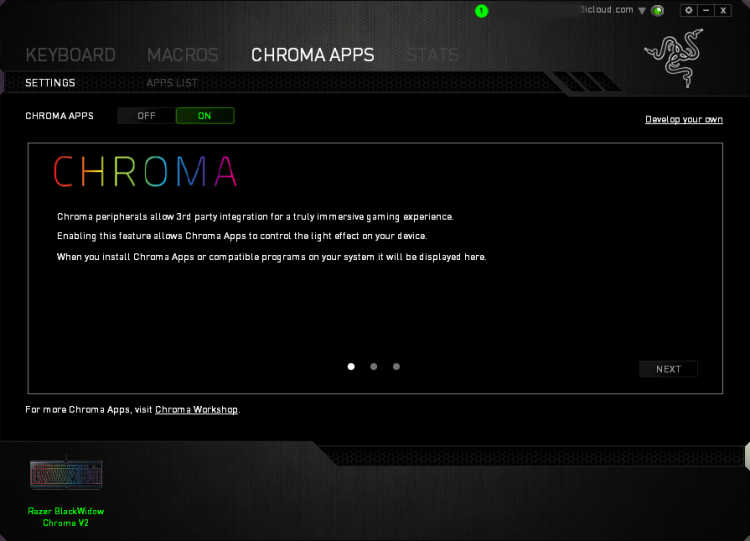
Chroma Apps is a big deal, giving users a practical use for the RGB backlit keys. Razer have developed an SDK that developers, and third party users alike, can use to take control of the lighting on the keyboard; for instance, only highlighting the keys required while playing a game, or displaying the direction of which you’re being attacked from in an FPS game, by way of flashing keys in that corner. We tested this in Orcs Must Die: Unchained and Rise of the Tomb Raider, both of which performed incredibly well; we didn’t feel that this is just a gimmick but has actual merit. Many big titles have adopted this feature, a list of which can be found here (https://www.razerzone.com/chroma-workshop/integrations)
This feature was also used to test out the audio visualiser, which plays along to the beat of any song or sounds generated by the PC. This looked stunning, another great use for the RGB lighting.
Once you’ve set up your account, which is required to allow you to sign in on any PC and download your settings, you’re met with the Customize screen. This screen allows keys to be assigned different purposes and for profiles to be constructed, with the ability of assigning profiles to any program, therefore allowing certain setups to launch automatically, as soon as a game or piece of software is booted.
Next up, lighting, this is where the fun begins. The RGB lighting on this keyboard is worthy of an award on its own, so the software needs to be useful to fully utilise its abilities. Many different effects can be chosen, including starlight which lights up random keys, one at a time, in a choice of your colours. Fire is pretty fun, using orange, red and yellow to create the effect of a fire, roaring up from the bottom of the keyboard.
It’s also possible to download profiles from Razer’s website, created by Razer themselves or by the community.
Gaming mode can be enabled within the software, which disables certain keys of your choice, to prevent them being accidentally clicked in the heat of battle; this setting can also be enabled using Fn + F10, marked on the key accordingly.
Macros can be assigned to any key on the keyboard, however Razer have placed 5 dedicated macro keys on the left hand edge of the keyboard, numbered M1 to M5. Setting up macros is incredibly easy, with the software able to record everything you do and repeat it perfectly, at the click of a button. We found this feature handy for starting our in-game recording software but the possibilities are near endless.
Chroma Apps is a big deal, giving users a practical use for the RGB backlit keys. Razer have developed an SDK that developers, and third party users alike, can use to take control of the lighting on the keyboard; for instance, only highlighting the keys required while playing a game, or displaying the direction of which you’re being attacked from in an FPS game, by way of flashing keys in that corner. We tested this in Orcs Must Die: Unchained and Rise of the Tomb Raider, both of which performed incredibly well; we didn’t feel that this is just a gimmick but has actual merit. Many big titles have adopted this feature, a list of which can be found here (https://www.razerzone.com/chroma-workshop/integrations)
This feature was also used to test out the audio visualiser, which plays along to the beat of any song or sounds generated by the PC. This looked stunning, another great use for the RGB lighting.


