
Everything so far has been done in the 'Registry Scan' tab at the top of the screen, so lets have a quick look at the other tabs to see what they contain.
Restore Tab
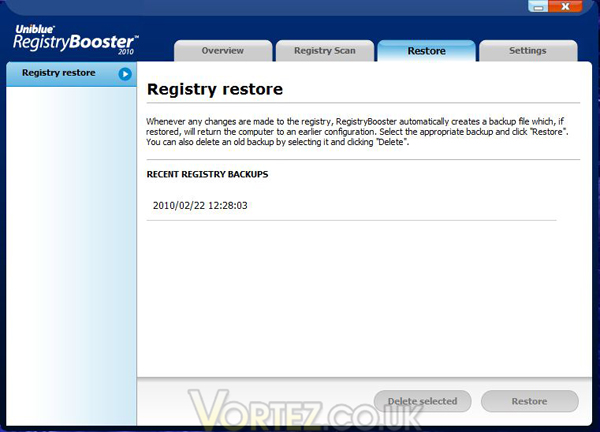
As the name implies this is where you can restore from a registry backup as was automatically saved earlier in the process. If you had looked at this tab before doing a 'Fix' it would of course have been empty. Once you have done more scans etc there will be an entry for each occasion and if you need to you can select a backup to restore from or to delete if required.
Settings Tab
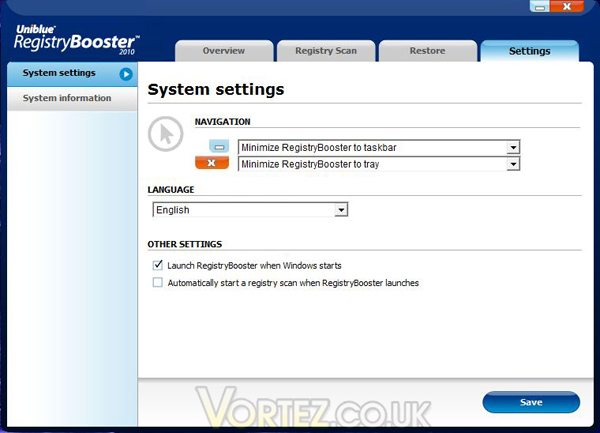
As stated earlier you can change the behaviour of the program, to alter what action occurs when clicking on either the 'minimize' or 'close' icons, to change the language, or to change how the program and scanning starts.
Overview Tab
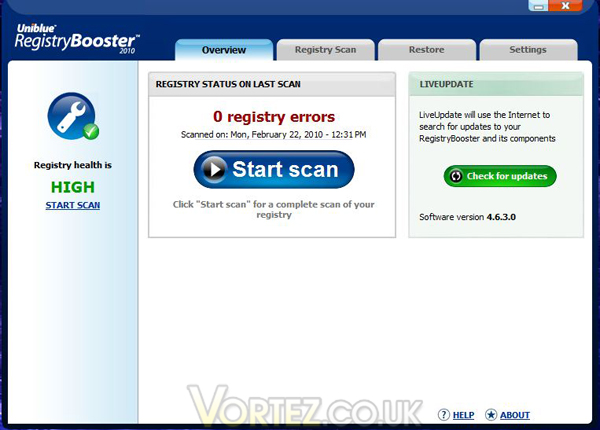
Having completed a scan and fix I decided to re-scan and see what was detected the second time around and thankfully things looked a lot happier. The Overview screen now showed a 'HIGH' Registry health result and zero errors!
You will also see that the program can be updated here on the Overview screen and it shows what current version you are running.
Re-scan detail
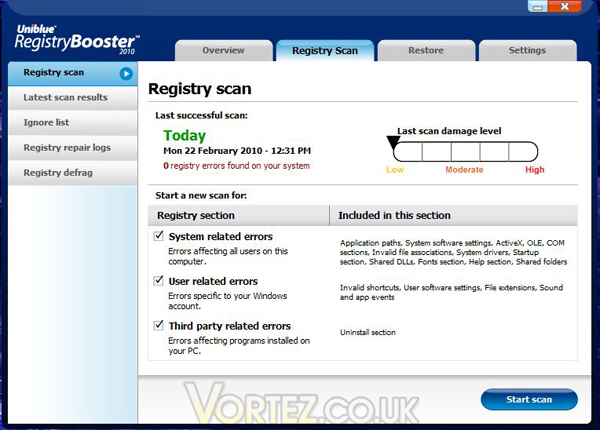
Moving back across to the Registry Scan tab and looking at the other selections available here we see a more detailed summary of the re-scan that I did to check the earlier fix. You can deselect what is scanned for here too should you wish to just scan one area of the registry, and you get a fairly detailed list of what is included in each category.
As the name implies this is where you can restore from a registry backup as was automatically saved earlier in the process. If you had looked at this tab before doing a 'Fix' it would of course have been empty. Once you have done more scans etc there will be an entry for each occasion and if you need to you can select a backup to restore from or to delete if required.
As stated earlier you can change the behaviour of the program, to alter what action occurs when clicking on either the 'minimize' or 'close' icons, to change the language, or to change how the program and scanning starts.
Having completed a scan and fix I decided to re-scan and see what was detected the second time around and thankfully things looked a lot happier. The Overview screen now showed a 'HIGH' Registry health result and zero errors!
You will also see that the program can be updated here on the Overview screen and it shows what current version you are running.
Moving back across to the Registry Scan tab and looking at the other selections available here we see a more detailed summary of the re-scan that I did to check the earlier fix. You can deselect what is scanned for here too should you wish to just scan one area of the registry, and you get a fairly detailed list of what is included in each category.


